Need help? Call Us : 02642-266340 Email : info@kingsoftware.co.in

×
![]()
Blog

Create Laravel Project Without run server on CMD.
Step 1
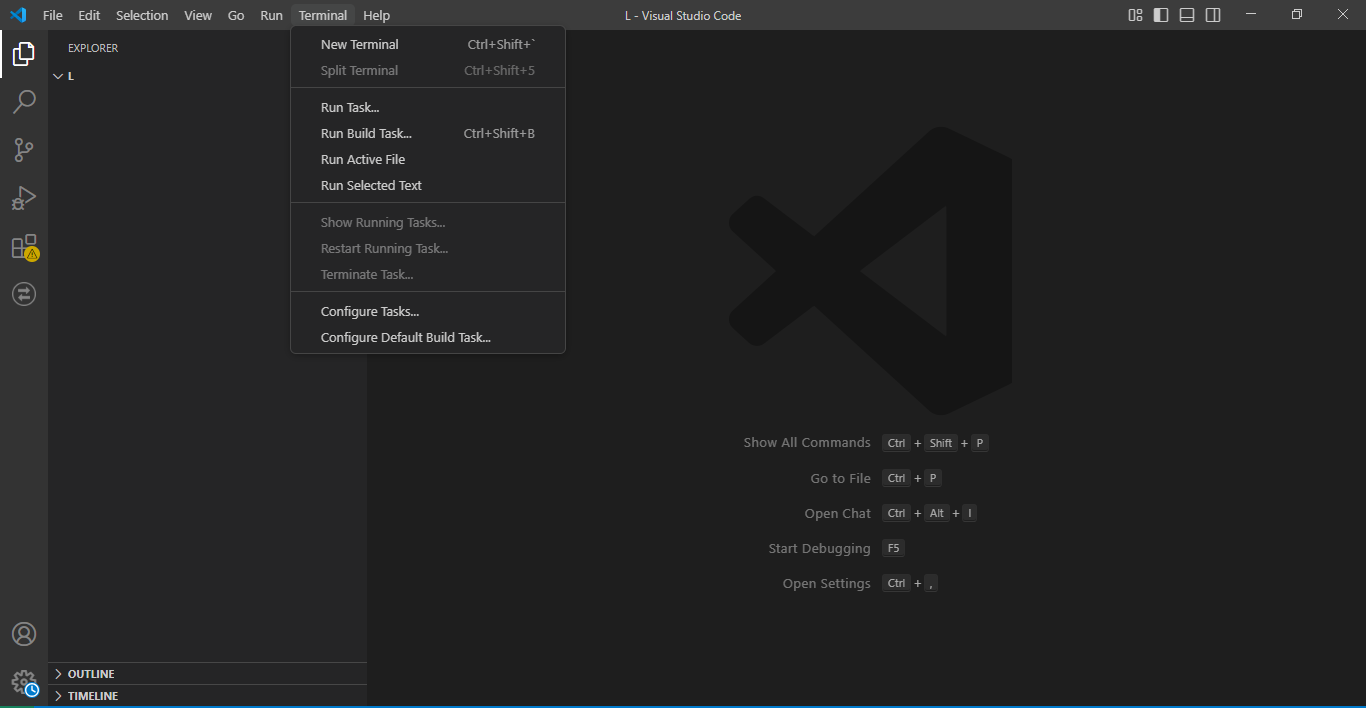
The VS Code terminal is accessed from the Terminal menu. The New Terminal option is highlighted, allowing you to open a new terminal window inside VS Code.
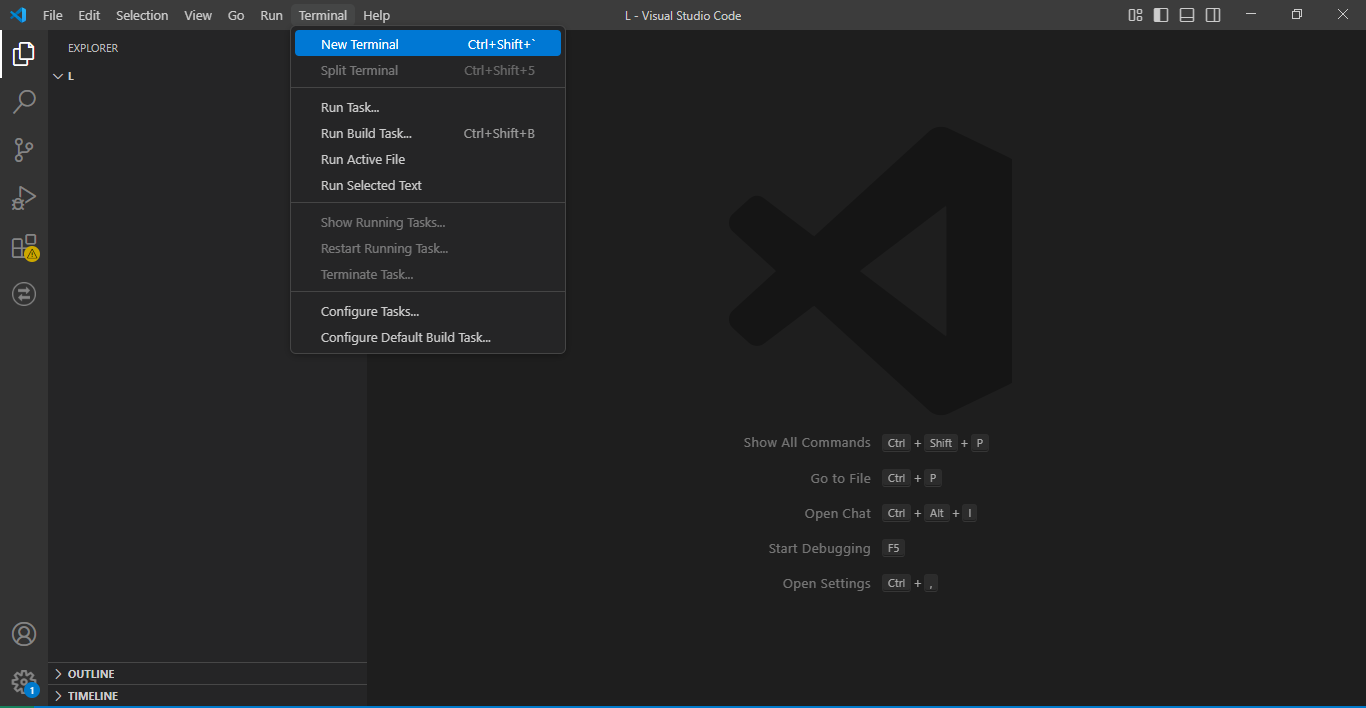
In this image, you're executing the command composer create-project --prefer-dist laravel/laravel myproject to create a new Laravel project named myproject. The New Terminal option is still highlighted.
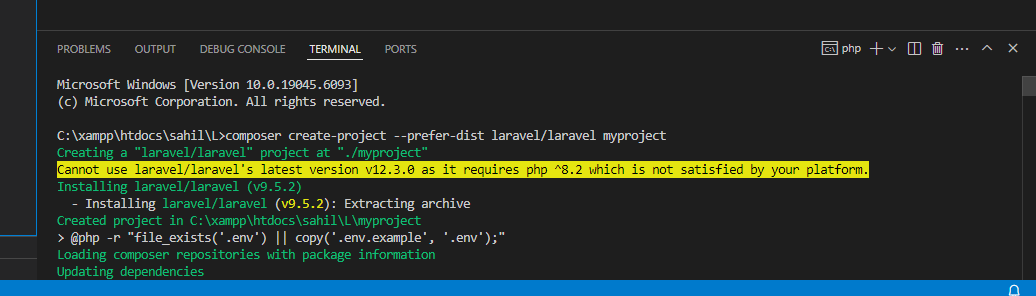
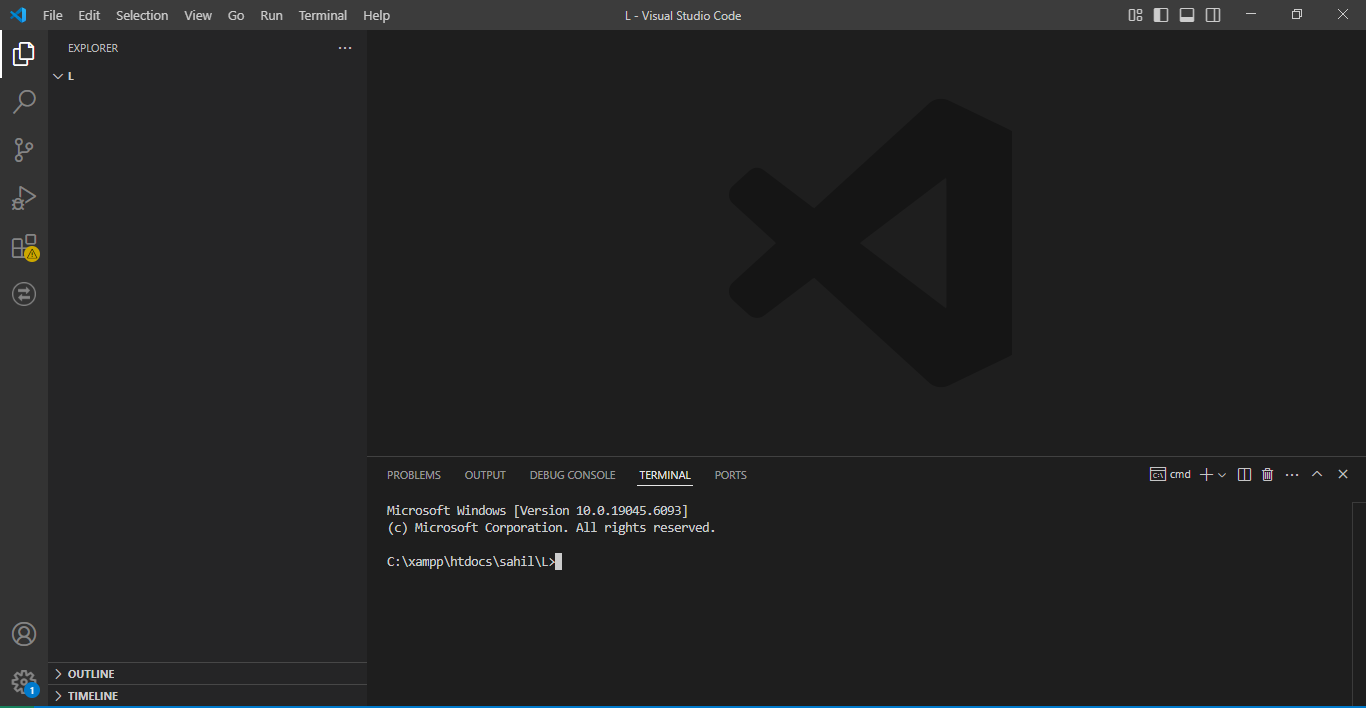
The terminal is now open, and you're in the project directory (C:\xampp\htdocs\sahil\). The prompt is showing the current directory where you’re executing commands.
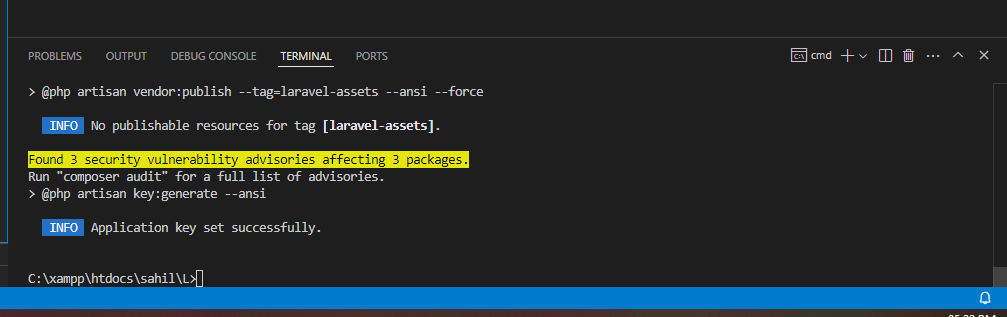
Now project is completely created.
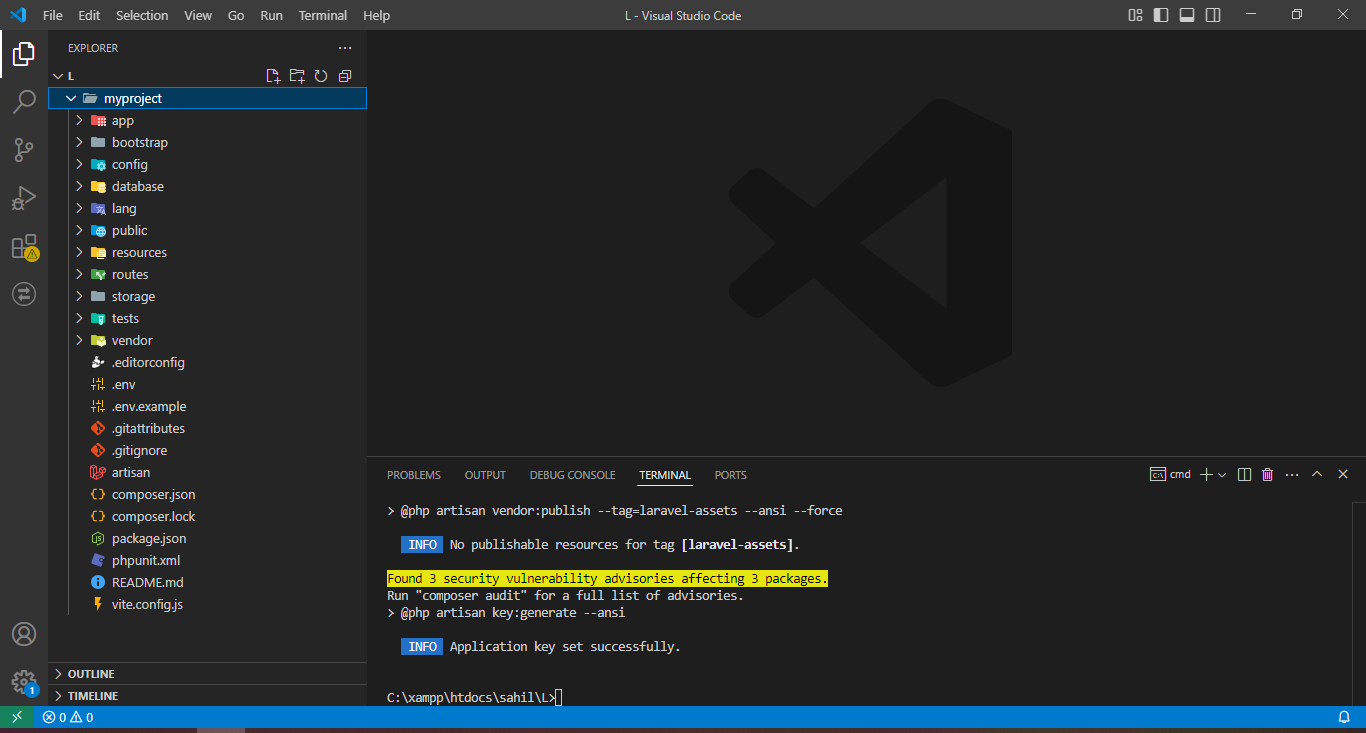
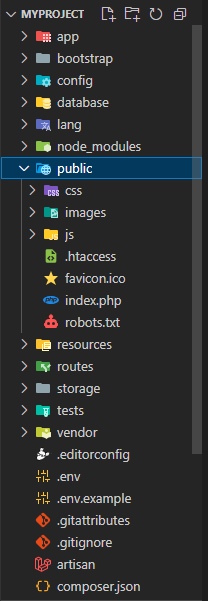
1. App: the core code for your application, including models, controllers, and other business logic.
2. Bootstrap: the files needed to boot up the Laravel application. The app.php file in this folder is essential for the initial configuration.
3. Config: Contains all configuration files for your application, like database settings, cache configuration, and application settings.
4. Database: folder typically holds migrations, factories, and seeders for database management.
5. Public: This is the public-facing directory for your application. It contains assets like CSS, JavaScript, and images, as well as the index.php file that handles incoming requests.
6. Resources: folder contains your views, raw assets (like uncompiled CSS and JavaScript), and language files.
7. Routes: is where you define all your application's routes (web.php, api.php, etc.).
8. Storage: Contains logs, cached data, and file uploads. Subdirectories include app, framework, and logs.
9. Tests: your test files to ensure your application is functioning as expected.
10. Vendor: Contains the third-party packages installed via Composer, including the Laravel framework itself.
Additional files you see:
.env: Stores environment variables, like database credentials, which shouldn't be tracked by version control (typically included in .gitignore).
composer.json: This file lists all PHP dependencies for your project.
artisan: Laravel’s command-line tool that helps with tasks like migrations, routing, and more.
README.md: A Markdown file that typically contains project setup instructions and other relevant info.
Step 2
Project File Structure Overview:
The project consists of several key directories and files. Let's break them down:
Root Directory:
.env: Stores environment variables.
composer.json: Composer dependency management.
artisan: Artisan CLI commands for Laravel.
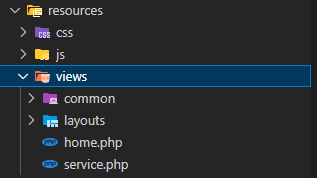
resources/: Contains the views and assets for the project.
views/: Contains PHP views and layouts.
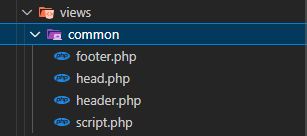
common/: Stores shared elements like header, footer, and scripts.
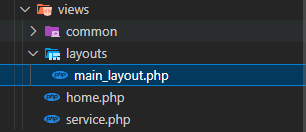
layouts/: Stores the main layout file for the site.
css/: Stores stylesheets.
js/: Stores JavaScript files.
2. Changing Paths:
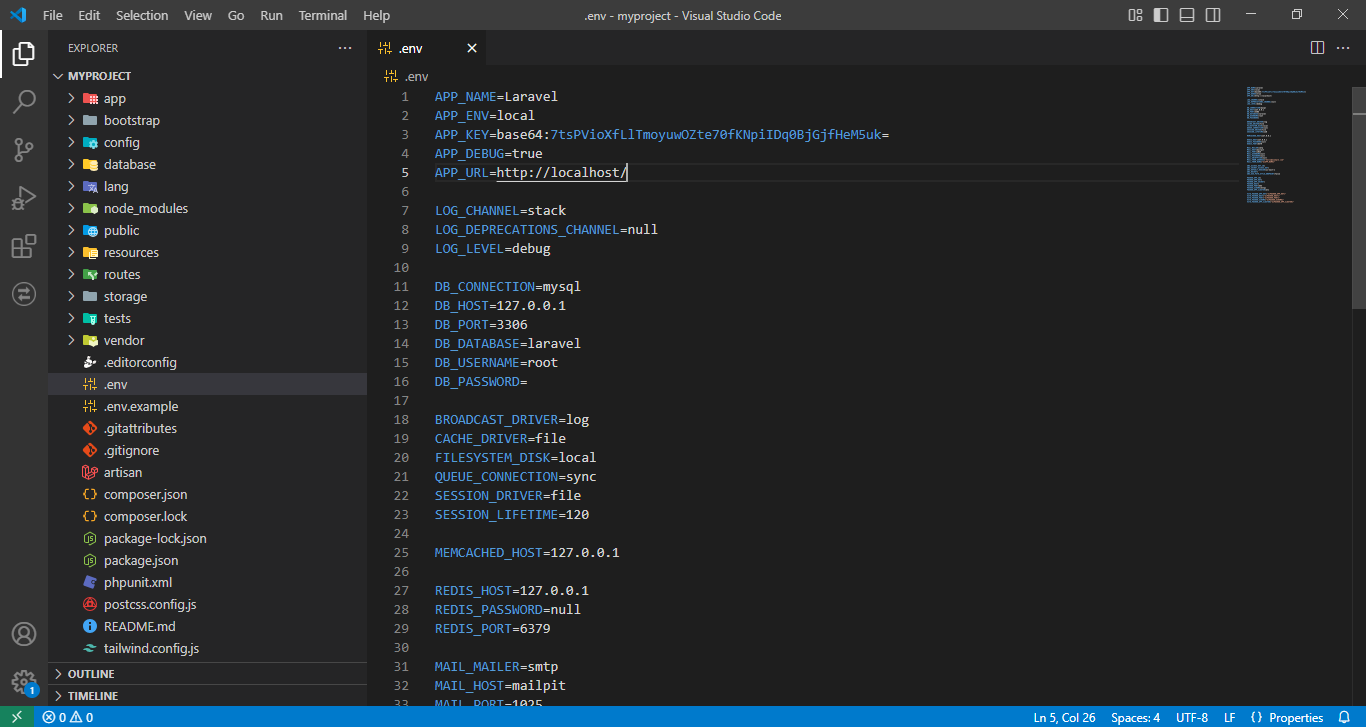
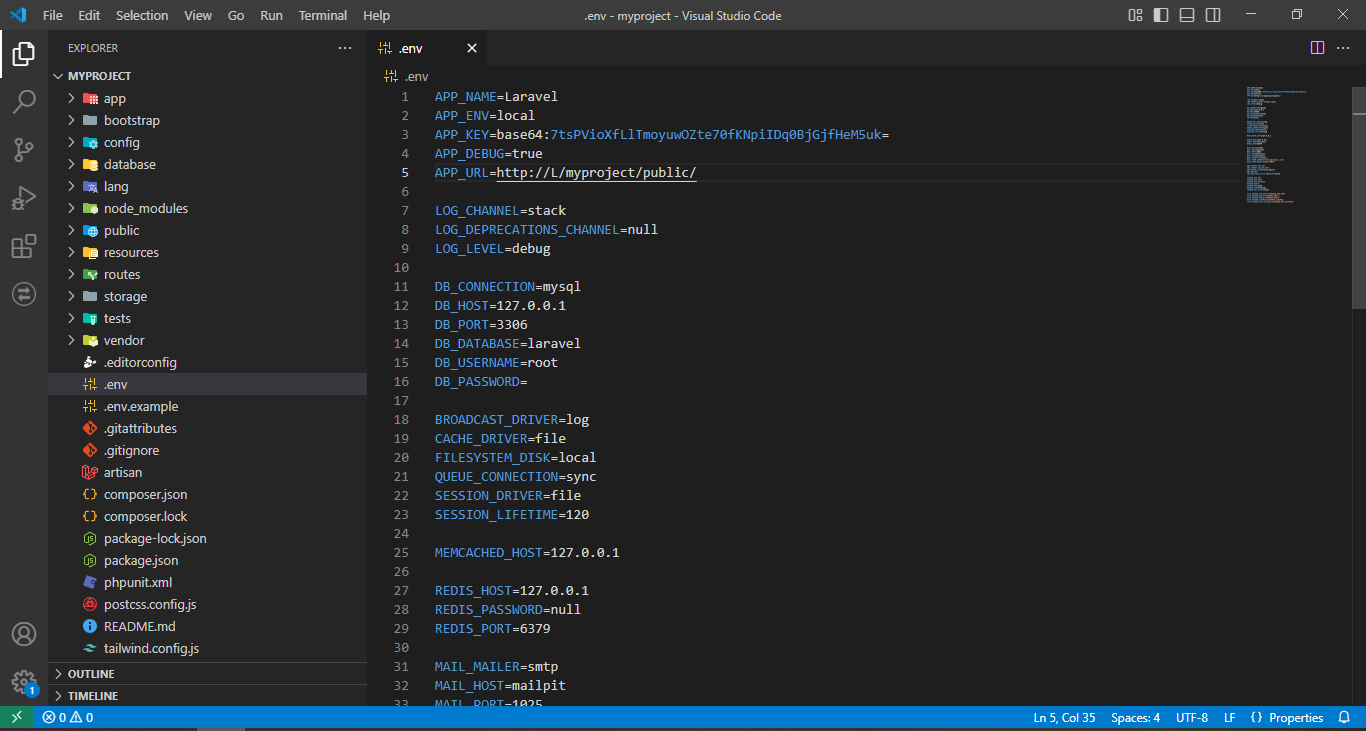
The APP_URL in the .env file should be updated to the correct URL based on the development environment.
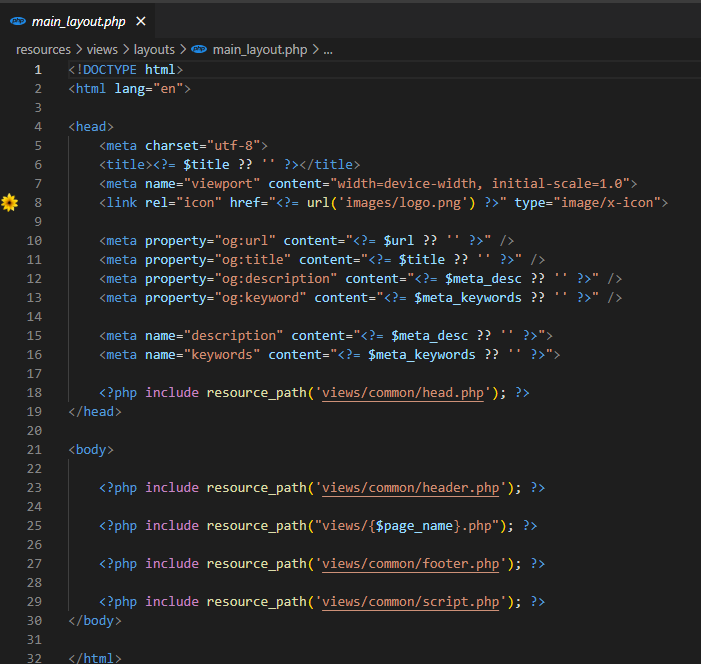
File paths in the views directory (like those in the main_layout.php) should reflect the correct location of assets, styles, and scripts.
3. Create Main Layout: The main layout is used as the base template for the pages. It will include the header, footer, and other components, and will be extended in individual pages like home.php or service.php.
Example Layout File: (resources/views/layouts/main_layout.php)
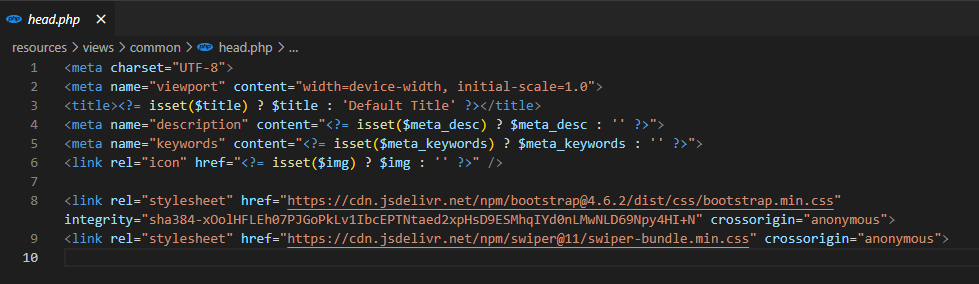
4. Create common Folder and its 4 Parts: This folder will contain shared files that are included in various layouts.
4.1 Head (resources/views/common/head.php): The head.php file will include meta tags and links to CSS files.
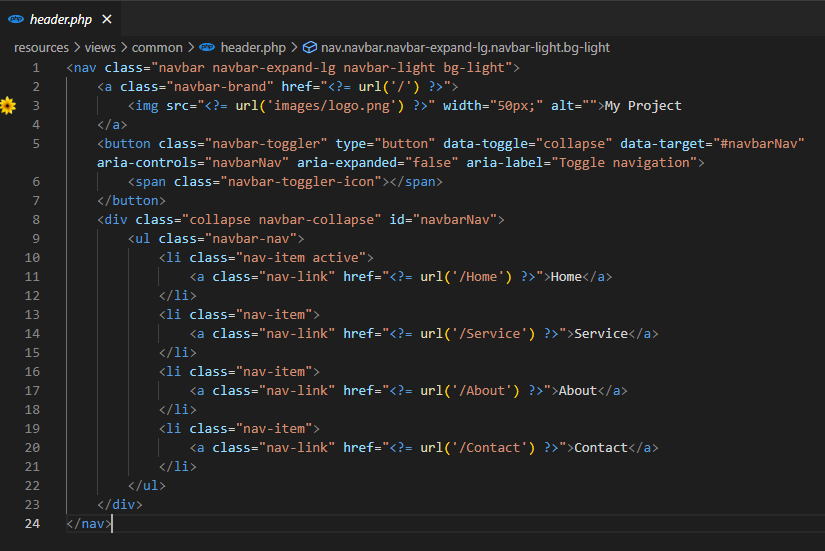
4.2 Header (resources/views/common/header.php): The header file contains the navigation bar and other elements at the top of each page.
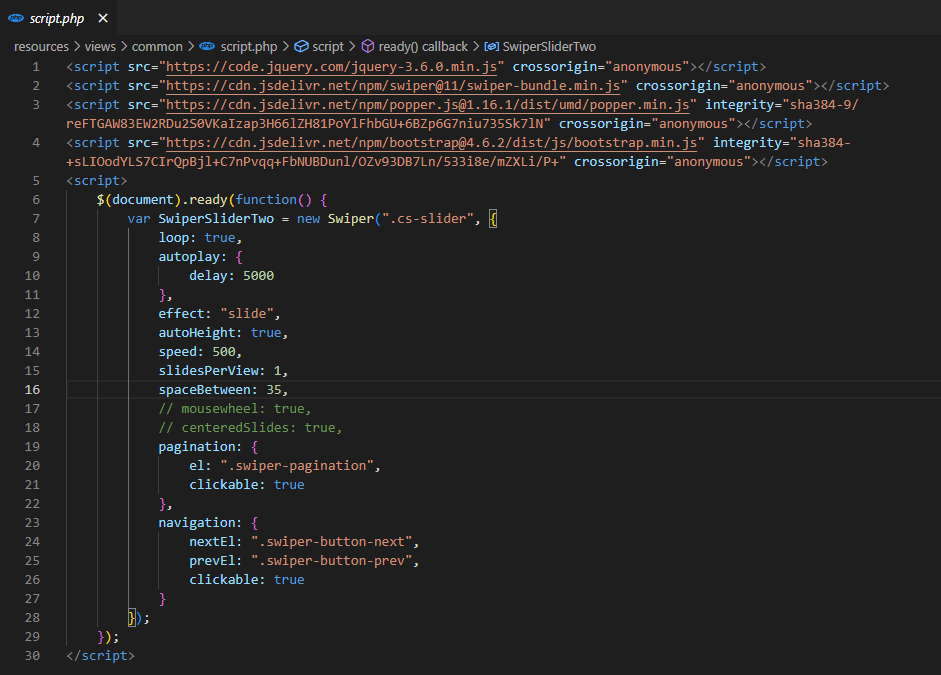
4.3 Script (resources/views/common/script.php): This file includes the necessary JavaScript files for the site.
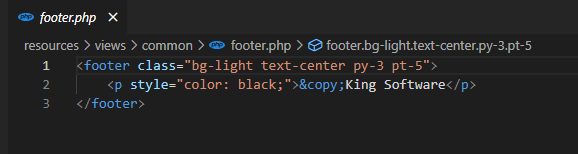
4.4 Footer (resources/views/common/footer.php): The footer file contains copyright and other footer information.
Folder Structure: Now folder structure look lke this
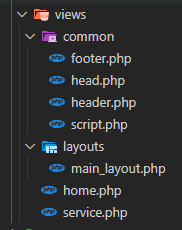
Explanation:
1. views/: Contains all the PHP view files for the project.
2. common/:
* footer.php: Contains the footer section of the website, typically including copyright information or other related content.
* head.php: Contains metadata and external resource links like CSS files, JavaScript libraries, and meta tags.
* header.php: The top section of the page (navigation bar, logo, etc.).
* script.php: Includes JavaScript files and scripts for the website’s functionality, including interactive elements like carousels or dynamic content.
3. layouts/:
main_layout.php: A layout file that includes the shared structure for all pages (head, header, footer, etc.). Specific page content will be inserted dynamically based on the $page_name variable.
home.php and service.php: are individual page templates that will extend the main_layout.php layout and display page-specific content.
6. create controller
1. Create the Controller Folder:
In the app/Http/Controllers/ directory, you will create the Home.php controller.
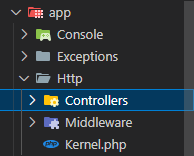
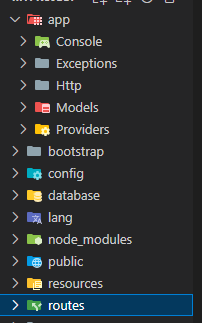
2. Folder Structure for Controllers: You should already have the following structure under the app directory:
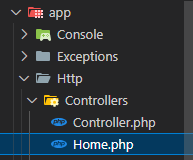
This folder structure ensures that your controller is properly placed within the Laravel framework.
3. Home Controller Code: The Home.php controller should look like this:
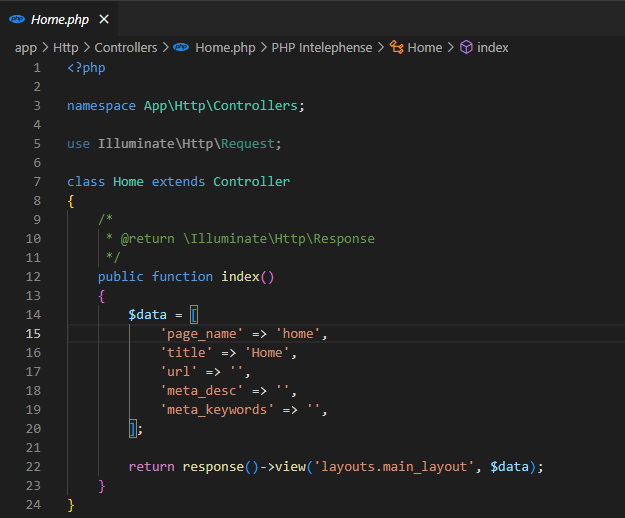
7. create route for load home controller
Locate the routes/web.php File: In the directory structure shown in the image, the routes folder is where the web.php file is located. Open the web.php file to define your routes for the homepage. The Home.php controller should look like this:
Define Routes for HomeController: Add the following code to the web.php file inside the routes folder:
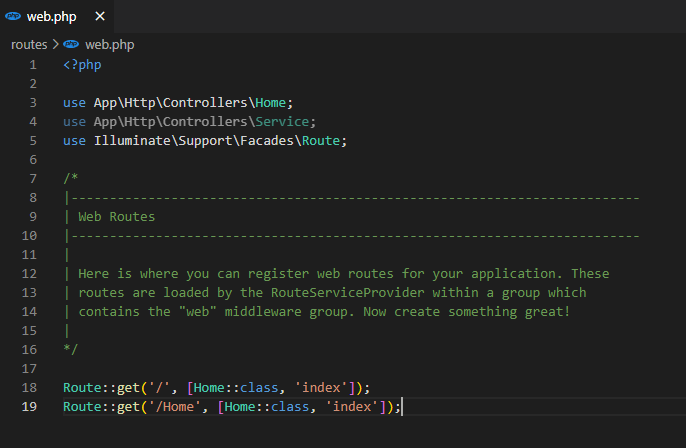
Explanation:
The Route::get() method defines the route for the URL and specifies which controller and method should be invoked when that URL is accessed.
'/'defines the route for the homepage.
'/Home' defines the route for the /Home URL.
HomeController::class, 'index' tells Laravel to use the HomeController class and its index() method to handle these routes.
If routes work then it show default page like this.
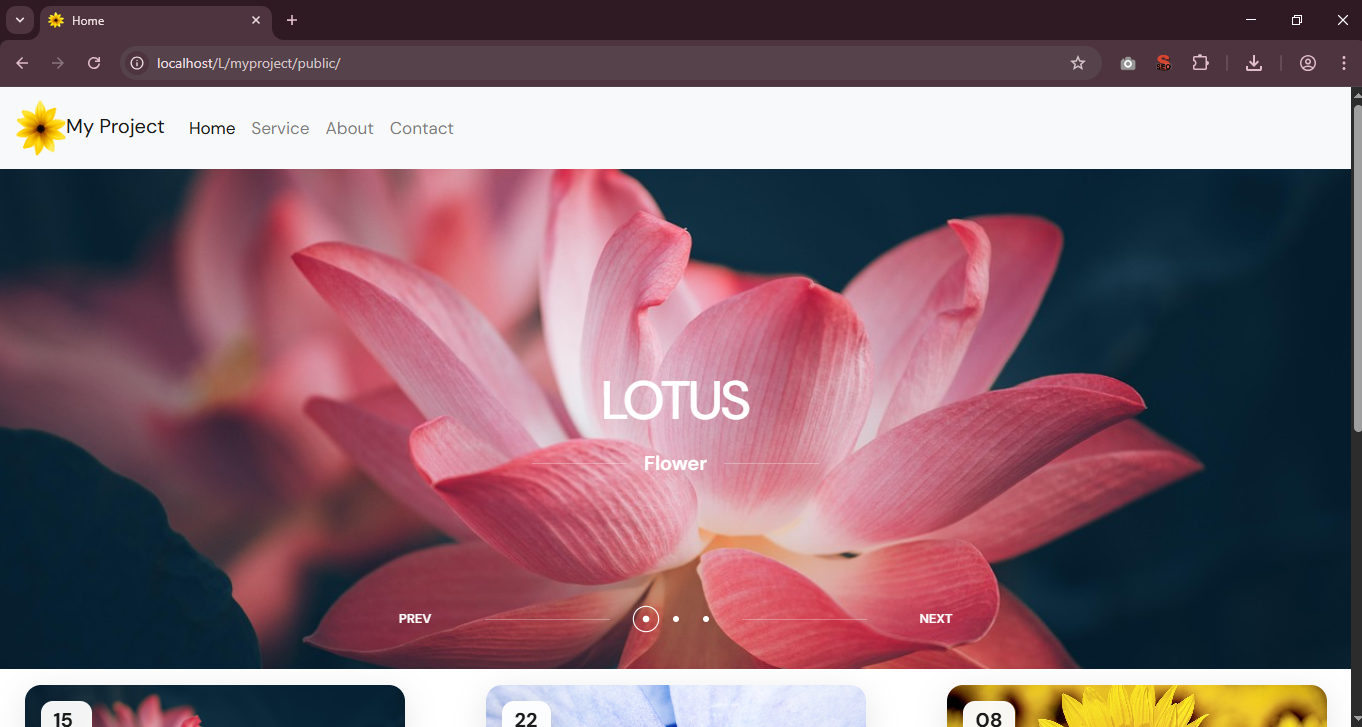
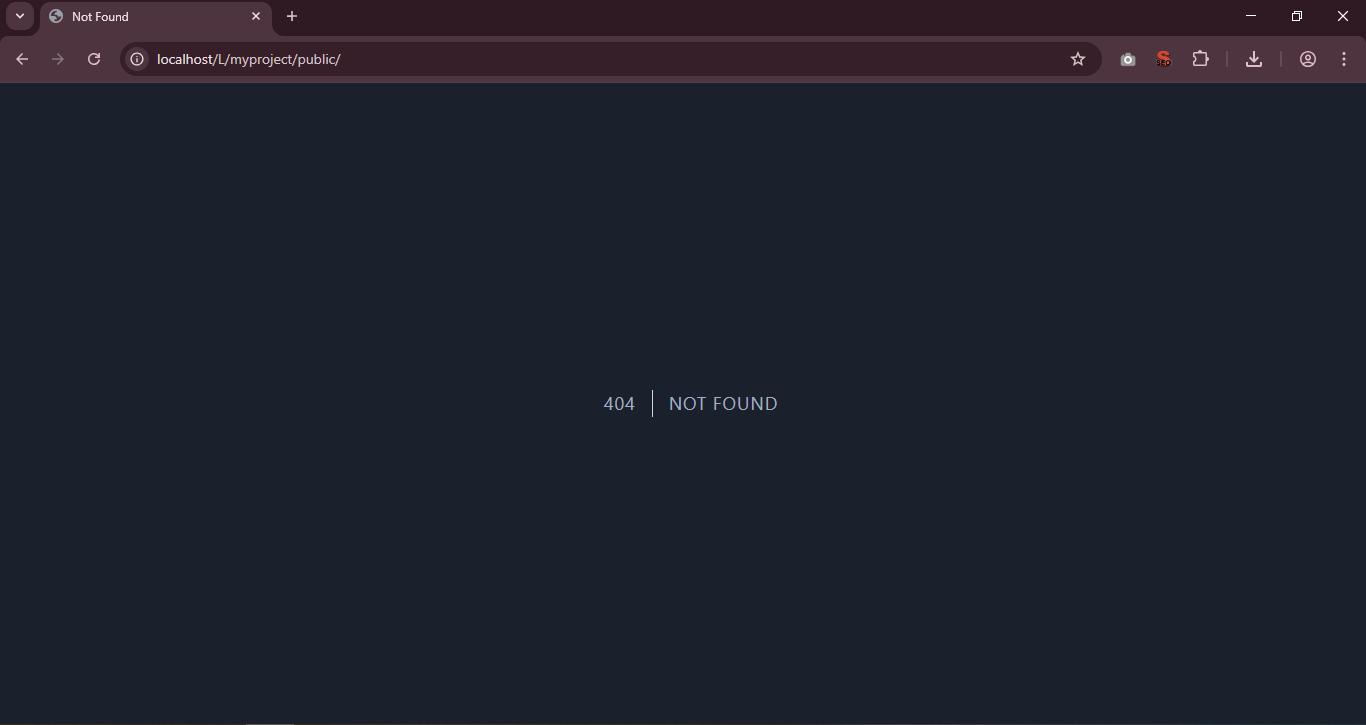
If route not give there in route, it will not show page. It show error page.
8. if you would like to add css , js, images and etc., you can add in public folder.